How to Automate POD Mockups in Bulk Using BulkMockup (2026 Guide)
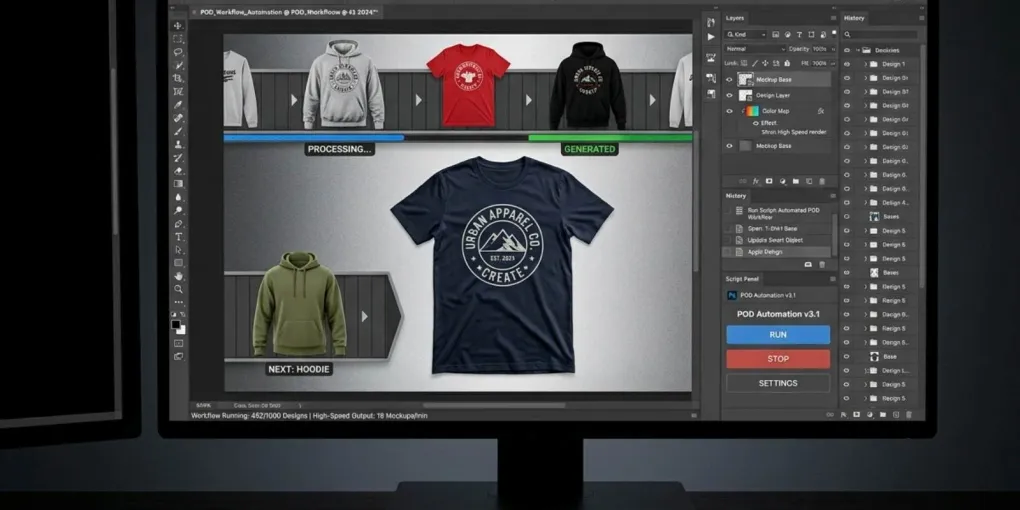
Manual mockup creation is the silent killer of scaling a Print-on-Demand (POD) business. Spending hours dragging, dropping, and resizing transparent PNGs over blank shirt images in Adobe Photoshop drains your creative energy and eats into profit margins. When you launch a new collection across 50 different products, manual generation becomes a logistical nightmare that stalls your time-to-market.
For high-volume sellers, the solution lies in local desktop automation. This guide provides an actionable, end-to-end blueprint on how to automate POD mockups using BulkMockup, a powerful Photoshop plugin that turns hours of manual editing into a hands-off, background process. By leveraging a structured PSD automation workflow, you can generate thousands of hyper-realistic product images locally while you focus on marketing and trend analysis.
Step 1: Asset Preparation & Folder Structure
Automation software is inherently literal. It executes commands based on strict logic, which means a chaotic file system breaks your batch processing instantly. Before launching Photoshop, you must establish a flawless, predictable directory layout.
Create a dedicated master directory on your local drive. We highly recommend utilizing a fast NVMe SSD to drastically reduce read/write bottlenecks during massive export runs. Within this directory, set up three distinct folders:
- Designs Folder: This contains your final, production-ready artwork files (typically high-resolution transparent PNGs at 300 DPI).
- Templates Folder: This houses your master Photoshop (.PSD) mockup files, pre-configured with Smart Objects.
- Output Folder: The destination where BulkMockup automatically saves your rendered, web-optimized JPEG or PNG mockups.
For the automation engine to pair the right design with the correct product, alignment is key. Group your designs by product type if you use specific print areas. Investing twenty minutes in organizing your master design asset folders saves hours of troubleshooting failed exports later.
Step 2: Configuring the Master PSD Template
The heart of a successful PSD automation workflow is a properly structured template file. BulkMockup functions by targeting a specific Smart Object layer within your Photoshop file, opening it, pasting your design artwork, scaling it to fit, and saving the result.
Setting Up the Smart Object Bounding Box
Open your base mockup image in Photoshop. Convert the designated print area into a Smart Object and name it clearly (e.g., PLACE_DESIGN_HERE). Double-click the Smart Object to open its nested .psb file. This bounding box defines the maximum boundaries where your artwork will render.
Adhering to Strict Brand Standards
To maintain a premium, high-converting aesthetic across moody, high-end apparel niches, your base templates must reflect professional retail manufacturing constraints:
- Color Selection: The base apparel products must feature dark colors, specifically Black, Charcoal, or Deep Navy. Avoid using white support materials or bright, saturated base garments, as they cheapen the perceived value of complex graphic designs.
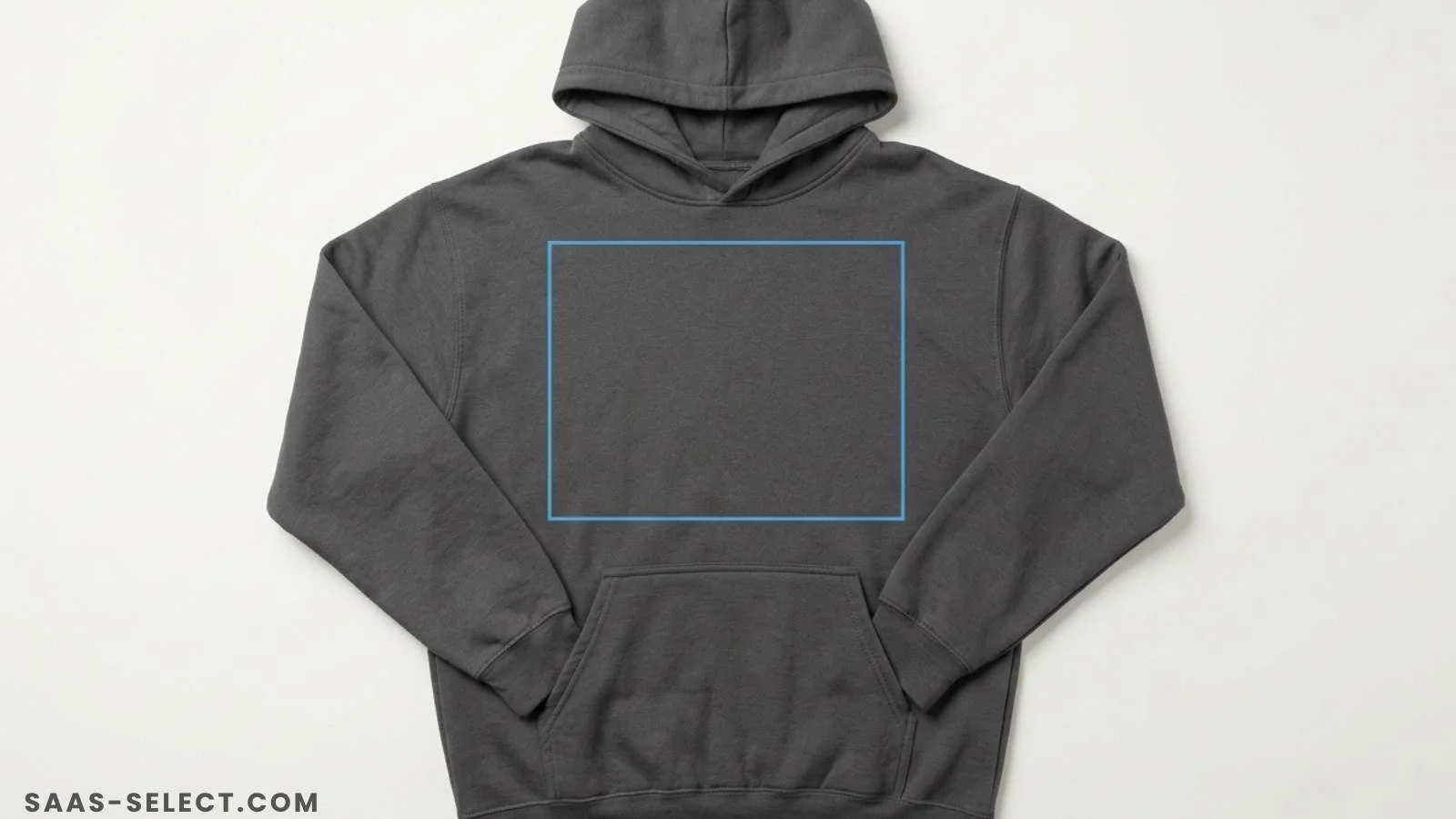
- Hoodie Placement Rules: When configuring hoodie templates, the graphic bounding box must be centered precisely on the torso. It must be positioned entirely above the middle kangaroo pocket with zero overlapping. Overlapping the pocket seam breaks realism and ruins the customer experience during batch processing.
Pro-Tip for AI-Generated Backgrounds: If you use AI generation tools to create custom lifestyle base backgrounds, your AI prompt must explicitly describe the design exactly as it appears printed on the physical product. This ensures the AI model generates realistic ambient lighting, fabric folds, and texture integration that blends seamlessly with your digital artwork overlays.
Step 3: Executing the Batch Process
Once your folders are structured and your master PSD files are configured, you are ready to initiate the batch generation process within BulkMockup.
Running the BulkMockup Plugin
Launch Photoshop, open the BulkMockup panel, and link your three core directories:
| Configuration Field | Target Directory / Setting |
|---|---|
| Design Folder | Select your organized PNG folder |
| Template Folder | Select your master PSD template folder |
| Output Folder | Select your designated export folder |
| Export Format | JPEG (80-90% Quality for Web) or PNG |
| Smart Object Target | Match the name of your template’s Smart Object layer |
Review your scaling settings. BulkMockup allows you to auto-fit designs relative to the bounding box width or height. For standard apparel, setting the design to fill 90% of the Smart Object width ensures consistent margins across different artwork aspect ratios.
Click “Run”.
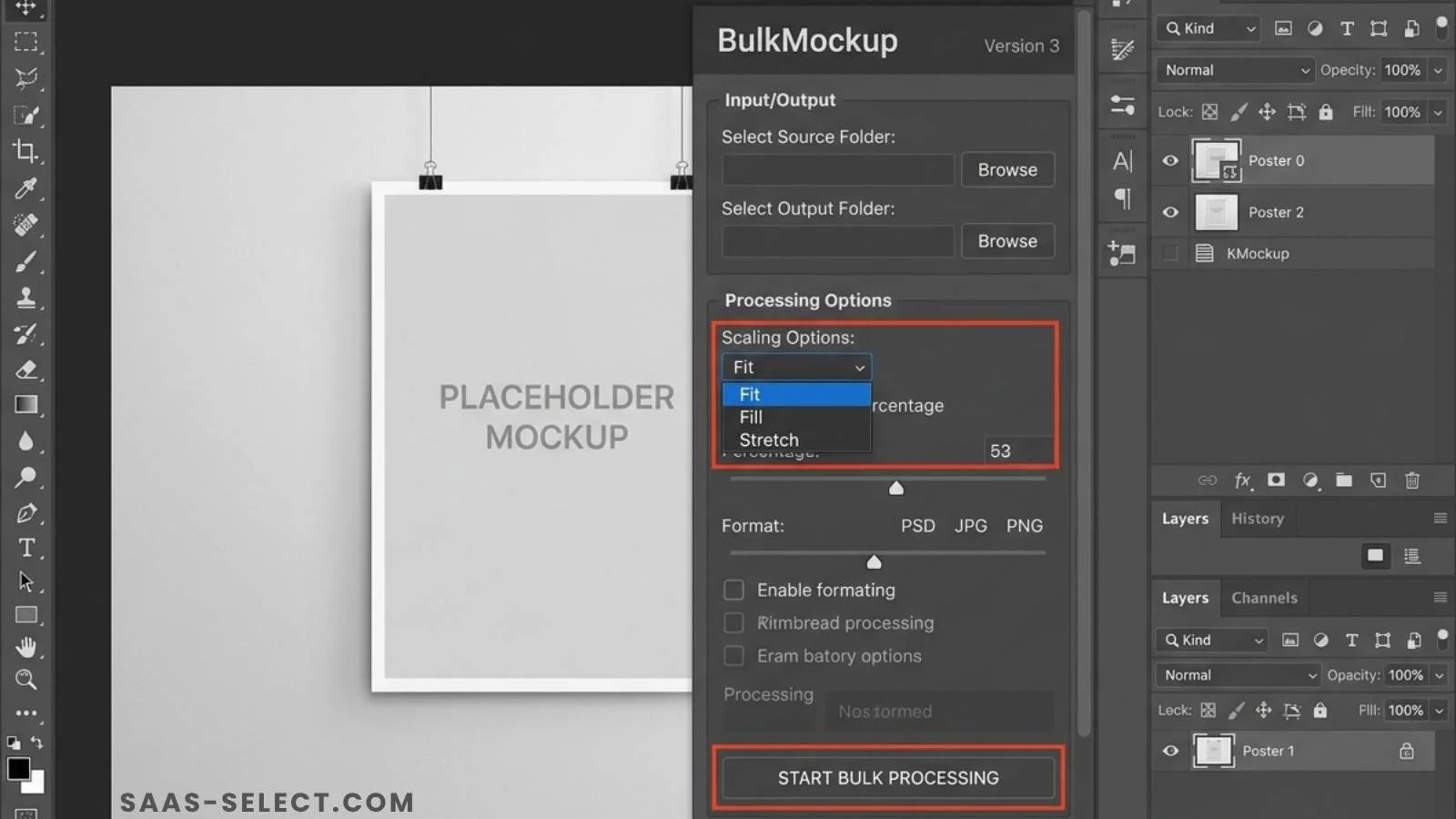
The manual grind ends here. Watch as Photoshop opens templates, injects designs, transforms scales, applies realistic garment displacement maps, and exports finished files locally at lightning speed.
Because this processing happens on your local hardware, you avoid the monthly credit limits, subscription tiers, and slow render queues associated with cloud platforms. If you are weighing your infrastructure options, you can compare BulkMockup against cloud alternatives to see how local rendering maximizes asset control and eliminates recurring overhead.
Step 4: Metadata and Safe Publishing
Generating hundreds of high-quality mockups is only half the battle. You must deploy them to your e-commerce channels safely. High-volume automation requires strict compliance with marketplace algorithms to protect your seller accounts from automated flags.
Managing Exported Assets
BulkMockup automatically appends the design file name to the template name, giving you clean, identifiable filenames. Use these structured filenames to map your images directly to your inventory CSV upload sheets for Shopify, Etsy, or Printify. This eliminates manual data entry and reduces tool fatigue during massive catalog expansions.
Compliance for Print-on-Demand Marketplaces
When preparing metadata for automated uploads, platform-specific rules are absolute. For example, if you target Redbubble alongside your independent storefront, you must configure your listing CSVs to contain no more than 15 highly relevant tags per design. Exceeding this strict limit triggers automated spam filters, which can lead to immediate account termination. Keep your metadata tight, precise, and descriptive.
Step 5: Troubleshooting Common Batch Errors
Even with perfect setup, batch automation can fail. Here are the most common errors and how to fix them:
| Error Symptom | Root Cause | Fix |
|---|---|---|
| ”Smart Object not found” | Layer name mismatch between template and BulkMockup config | Verify exact spelling and case sensitivity of the Smart Object layer name |
| Design appears stretched or cropped | Bounding box aspect ratio ≠ design aspect ratio | Lock aspect ratio in BulkMockup settings or crop designs to template proportions |
| Exports are blank/white | Design file lacks transparency (JPEG input) | Convert all designs to transparent PNG before batching |
| Photoshop crashes mid-batch | Insufficient RAM or corrupted PSD template | Close other apps, increase Photoshop memory allocation to 70%, rebuild template |
| Wrong design paired with template | File naming mismatch or folder misalignment | Use strict naming conventions: DESIGNNAME_PRODUCTVARIANT.png |
If you encounter persistent crashes during large batches, split your job into smaller chunks of 200–300 mockups. This reduces memory pressure and makes debugging easier if a specific template or design is corrupted.
Next Steps for High-Volume Sellers
Automating your mockup pipeline removes the administrative bottleneck that keeps many POD businesses small. By pairing organized local directories with precision Photoshop Smart Objects, you allow a single operator to manage the output of a large-scale agency.
To ensure your computer hardware can handle the intense processing load of local automation, check out our full BulkMockup testing methodology where we break down real-world render speeds, hardware benchmarks, and template stress-tests. Optimize your workspace, build your master templates correctly, and let automation handle the heavy lifting while you focus on scaling revenue.
Ready to Automate Your Mockup Workflow?
If you’re serious about scaling your POD catalog with full local rendering quality, BulkMockup is a strong automation bridge — just budget it correctly. As of 2026 it runs on a subscription ($15/month or $77/year), not the one-time license some older guides still describe; see our full BulkMockup review for the current pricing breakdown and what it actually costs once you factor in the Photoshop subscription it depends on.
Always test with a single design-template pair before running a full batch. Verify output quality, scaling accuracy, and filename mapping before committing your entire catalog.
Frequently asked questions
Does BulkMockup work with Photoshop Elements?
No. BulkMockup requires the full version of Adobe Photoshop CC 2019 or newer. Photoshop Elements lacks the scripting API and Action panel support needed for automation. You need a Creative Cloud subscription or a perpetual CS6 license.
How many mockups can BulkMockup process in one batch?
There is no hard limit imposed by the software itself. The practical limit depends on your hardware: RAM (16GB+ recommended), CPU speed, and SSD read/write performance. Users routinely process 500–2,000 mockups in a single overnight batch on modern workstations.
What file formats does BulkMockup support for designs and exports?
For input designs, BulkMockup accepts transparent PNGs (recommended), PSDs, and JPEGs. For exports, you can choose between JPEG (80–95% quality for web), PNG (lossless for print previews), or WebP. We recommend JPEG at 90% for e-commerce listings and PNG for B2B catalog exports.
Can I use BulkMockup on a Mac or only Windows?
BulkMockup supports both Windows 10/11 and macOS 10.15+. However, performance is generally better on Windows due to Photoshop's scripting engine optimizations.
More from this series
Tools mentioned in this guide