File Naming Conventions for POD: How to Organize 5,000+ Designs
In the world of high-volume Print-on-Demand (POD), data architecture is everything. When you are managing a handful of designs, drag-and-drop folder organization works fine. But the moment you scale your operations to thousands of listings across multiple storefronts like Redbubble, TeePublic, or Etsy, a chaotic file system becomes an expensive operational bottleneck.
Every minute spent searching for a missing transparent PNG, or manually verifying if a file is optimized for light or dark apparel, is a minute stolen from scaling your business.
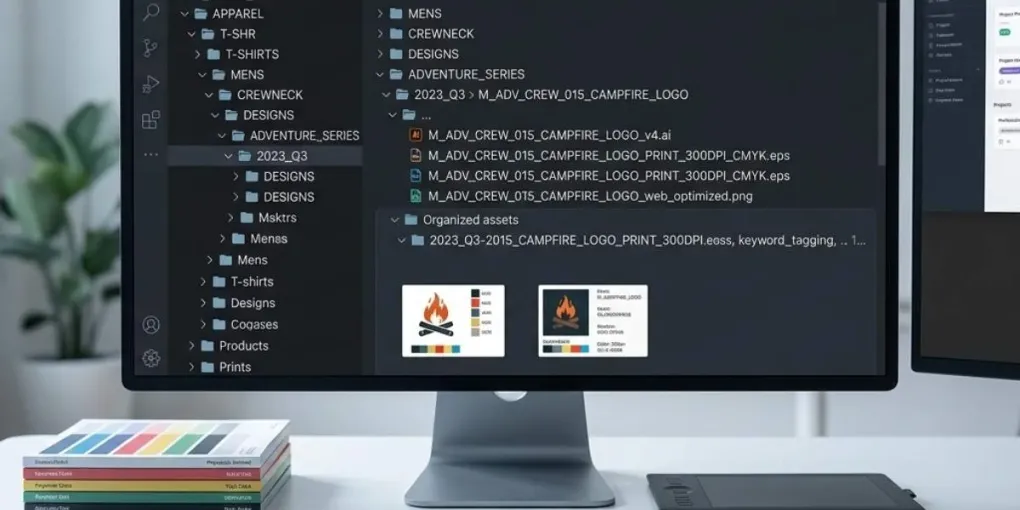
To unlock the power of automated bulk mockup generation and seamless listing distribution, you need a strict, programmatic file-naming convention. Here is the exact structural framework used by elite digital creators to maintain a clean Digital Asset Management (DAM) workflow.
The Hidden Cost of Bad Naming Habits
Most independent creators start out naming their assets based on visual memory:
cool_skull_final.pngskull_design_for_hoodie_black.pnguntitled_art_2_fixed.png
While human brains can decode these names on a small scale, automation engines cannot. If you use bulk listing software or localized Photoshop scripting engines (like BulkMockup), your tools rely heavily on structured file metadata and predictable string patterns.
A standardized naming convention acts as a database key. It allows your automation tools to instantly identify the niche, design type, and visual limitations of an asset without requiring a manual human preview.
This is why a proper file naming strategy is the foundation of any high-volume POD organization system.
Anatomy of the Perfect POD File-Naming Framework
A scalable file name must be modular, lowercase, and separated strictly by hyphens (kebab-case) to ensure web compatibility and smooth script parsing.
Here is the industry-standard formula:
[collection/niche]-[design-core-name]-[style-modifier]-[target-placement]-[version].[ext]
Let’s break down each component of this structural string:
1. Collection or Niche Tag ([collection/niche])
This identifies the macro-theme of the design asset. It allows you to sort and batch-process hundreds of files instantly within your DAM software (such as Eagle or spreadsheet inventory trackers).
- Examples:
dark-academia,retro-80s,library-culture,tabletop-rpg.
2. Design Core Name ([design-core-name])
The unique identifier of the graphical concept. Keep this descriptive but concise, using exact keywords that map to your listing titles or SEO tags.
- Examples:
archivist-necromancer,bibliophile-skull,interlibrary-summoner.
3. Style or Color Modifier ([style-modifier])
Crucial for asset allocation. This component tells you (and your automated mockup generator) the graphic’s intrinsic color rules. For example, a vintage woodcut design with pure white linework needs to be paired strictly with dark-colored support materials (Black, Charcoal, Deep Navy) and must never be placed on a white background.
- Examples:
white-linework,distressed-colorful,dark-monochrome.
4. Target Placement ([target-placement])
Defines the technical intent of the graphic dimension or layout. This ensures you don’t accidentally push a full-torso t-shirt print onto a sleeve layout or cross over hoodie pockets during automated scaling.
- Examples:
front-torso,pocket-center,sticker-diecut.
5. Version Control ([version])
Never overwrite files. Use simple sequential version increments (v1, v2) to track design iterations, scale adjustments, or color corrections.
Real-World Workflow Application
Let’s look at how this structural formula plays out in a production environment.
If you are uploading a batch of gothic, woodcut-themed graphics designed specifically for dark apparel items, your asset library should look like this:
dark-academia-the-mimic-white-linework-front-torso-v1.pngdark-academia-the-archivist-white-linework-front-torso-v1.pnglibrary-culture-interlibrary-summoner-dark-monochrome-pocket-center-v2.png
Why This Structure Changes Everything
- Instant Bulk Sorting: Typing
white-lineworkinto your asset manager immediately filters every file that requires a dark-colored apparel template. - Automated Metadata Mapping: Advanced POD listing tools can read these file names via spreadsheets, auto-generating clean titles and internal organization tags using simple data parsing formulas.
- Flawless Asset Management: If a customer reports a printing issue on a graphic, you can trace the exact file back to your master inventory in seconds without guessing which “final_final” version was used.
For a deeper dive into the tools that work with this structure, check our digital asset management guide.
Implementing the System in Your Daily Workflow
Transitioning to a standardized convention requires discipline, but you can ease the friction with these three operational rules:
1. Enforce the Rule at Export
Never save a file to a temporary directory with a generic software name. Name the file properly directly inside your design software (Photoshop, Illustrator, Procreate) during the final asset export phase.
2. Leverage Batch Renaming Tools
If you have an existing library of chaotic files, use localized batch renaming utility software or digital asset managers (like Eagle.cool) to clean up old strings instantly using pattern rules.
3. Align with Your Spreadsheet Inventory
Ensure that the exact file name string matches the tracking ID row in your main business operations spreadsheet. This creates a bulletproof single source of truth for your POD catalog.
Connecting to Your Automation Pipeline
A well-structured file naming system is the key that unlocks full automation. When your assets are consistently named, you can:
- Automate mockup generation — BulkMockup can parse your file names to apply the correct placement and style rules.
- Sync with listing tools — MyDesigns can read your file names to auto-populate titles and tags.
- Scale without chaos — As your catalog grows, your system grows with it.
For a complete workflow example, read our guide on automating POD mockups in bulk.
Frequently asked questions
Why is file naming important for POD sellers?
Consistent file naming allows automation tools (like bulk mockup generators) to parse your files instantly. It eliminates manual searching, prevents misaligned placements, and ensures your metadata is ready for multi-platform publishing.
What is the best file naming convention for POD?
Use kebab-case with this structure: `[niche]-[design-name]-[style-modifier]-[placement]-[version].png`. For example: `dark-academia-archivist-white-linework-front-torso-v1.png`. This is modular, web-compatible, and script-friendly.
How do I implement file naming conventions for existing files?
Use batch renaming tools like Eagle.cool or Adobe Bridge to apply pattern rules to your existing library. Then, update your master spreadsheet to match the new file names, creating a single source of truth.
Should I include colors in my file names?
Yes, include style modifiers like `white-linework`, `dark-monochrome`, or `distressed-colorful`. This tells your automation tools which mockup templates to use (e.g., dark-linework designs go on dark-colored apparel).
More from this series